
Install Downloader
How to Install Downloader on Different TV Boxes and Streaming Sticks
This guide explains how to install Downloader by AFTVnews on different TV boxes, streaming sticks, and Smart TVs.
Downloader is a free application that allows you to download files and install compatible Android applications (APK files) that may not be available in your device’s official app store.

App Name: Downloader by AFTVnews
Price: Free (with ads and optional in-app purchases)
App Icon: Orange background with a white download arrow
Google Play Store
1. Amazon Fire TV Stick / Fire TV Cube
Compatible with many Fire TV Sticks, Fire TV Cube devices, and Fire TVs running Fire OS.
Step 1: Install Downloader
1. Turn on your Fire TV Stick.
2. Go to Search (magnifying glass icon).
3. Type Downloader.
4. Select Downloader by AFTVnews (orange icon).
5. Click Download or Get.
6. Wait for the installation to finish.
7. Open Downloader and allow the requested permissions.
Step 2: Enable Installation from Unknown Sources
1. Open Settings on your Fire TV.
2. Select My Fire TV.
3. Go to Developer Options.
4. Select Install Unknown Apps.
5. Find Downloader and turn it ON.
If Developer Options are missing:
1. Open Settings → My Fire TV → About.
2. Highlight your Fire TV device name.
3. Press the select button on your remote 7 times.
4. Return to the previous menu.
5. Developer Options should now appear, if supported by your device.
Important: Some newer Fire TV devices use Vega OS, which does not support standard Android APK installation.
2. Xiaomi Mi Box / Xiaomi TV Stick
Compatible with Xiaomi Mi Box S, Xiaomi TV Box S, Xiaomi TV Stick, and Xiaomi TV Stick 4K running Android TV or Google TV.
Step 1: Install Downloader
1. Turn on your Xiaomi device.
2. Open the Google Play Store.
3. Search for Downloader by AFTVnews.
4. Select the orange Downloader app.
5. Click Install.
6. Open Downloader.
7. Allow the requested permissions.
Step 2: Enable Unknown Apps
1. Open Settings.
2. Go to Apps.
3. Select Special App Access.
4. Open Install Unknown Apps.
5. Find Downloader.
6. Enable Allow from this source.
The exact menu names may vary depending on your Android version.
3. Google Chromecast with Google TV / Google TV Streamer
Step 1: Install Downloader
1. Turn on your Google TV device.
2. Navigate to the Apps section.
3. Search for Downloader.
4. Select Downloader by AFTVnews.
5. Click Install.
6. Open the app and allow the necessary permissions.
Step 2: Enable Developer Mode (If Required)
1. Open Settings.
2. Select System.
3. Go to About.
4. Scroll to Android TV OS Build.
5. Press the select button 7 times.
6. Developer Mode should now be enabled.
To install APK files, allow Downloader to install unknown apps in your device’s security or special app access settings.
4. NVIDIA Shield TV / Shield TV Pro
Step 1: Install Downloader
1. Turn on your NVIDIA Shield TV.
2. Open the Google Play Store.
3. Search for Downloader by AFTVnews.
4. Select the app.
5. Click Install.
6. Open Downloader.
7. Grant the requested permissions.
Step 2: Allow APK Installation
1. Go to Settings.
2. Select Apps.
3. Open Special App Access.
4. Select Install Unknown Apps.
5. Enable the permission for Downloader.
5. Other Android TV Boxes
This method works on many Android-based TV boxes, including compatible devices from Formuler, MECOOL, Strong, Nokia, and other manufacturers.
Installation Instructions
1. Turn on your Android TV Box.
2. Open the Google Play Store.
3. Search for Downloader by AFTVnews.
4. Select Install.
5. Wait until the installation is complete.
6. Open Downloader.
7. Allow the required permissions.
8. If necessary, enable Install Unknown Apps in your device settings.
Note: Some Android boxes do not include the official Google Play Store. On those devices, installation methods may differ. Always obtain installation files from trusted, official sources.
6. Devices That Do Not Support Downloader Directly
Device Downloader Support
Amazon Fire TV with Fire OS Yes, where available
Amazon Fire TV Stick 4K Select (Vega OS) No
Xiaomi TV Box / TV Stick Yes
Google TV / Android TV Yes
NVIDIA Shield TV Yes
Apple TV / Apple TV 4K No
Samsung Smart TV (Tizen) No
LG Smart TV (webOS) No
Roku Stick / Roku TV No
Samsung, LG, Apple TV, and Roku devices use different operating systems and cannot install standard Android APK files through Downloader.
7. How to Use Downloader to Install Apps
Once Downloader is installed, the process is almost identical across all compatible devices.
Step-by-Step Instructions
1. Open the Downloader app.
2. Select the input field labelled Enter a URL or Search Term.
3. Enter the download URL or Downloader code for the application you want to install.
4. Click Go.
5. Wait for the download to finish.
6. Select Install when prompted.
7. Wait for the installation to complete.
8. Select Open to launch the app or Done to return to Downloader.
9. You can delete the downloaded APK file afterward to save storage space.
8. Common Problems and Solutions
Problem Solution
Downloader is not showing in the app store Check device compatibility and app availability
Installation is blocked Enable installation from unknown sources for Downloader
Developer Options are missing Enable Developer Mode if supported
Download does not start Check your internet connection and URL
APK file cannot be installed Check Android version and app compatibility
Not enough storage space Delete unnecessary apps and downloaded files
App does not open after installation Check whether the app supports your device
9. Important Safety Information
Only download and install APK files from trusted sources. APK files from unknown websites may contain malware or malicious software.
Enabling installations from unknown sources bypasses some of the security protections provided by official app stores.
Summary
Installing Downloader is usually straightforward on compatible Android TV, Google TV, and Fire TV devices.
The basic process is:
1. Open your device’s app store.
2. Search for Downloader by AFTVnews.
3. Install and open the app.
4. Enable installation from unknown sources if required.
5. Enter a trusted download URL or Downloader code.
6. Download and install your chosen compatible application.
Downloader is not directly supported on Apple TV, Samsung Tizen TVs, LG webOS TVs, Roku devices, or Fire TV devices running Vega OS.
Install 8K VIP
Install

Install 8K VIP Player over the Downloader App wit Code 2057169.
If the Code is noch working ask us for a new one.
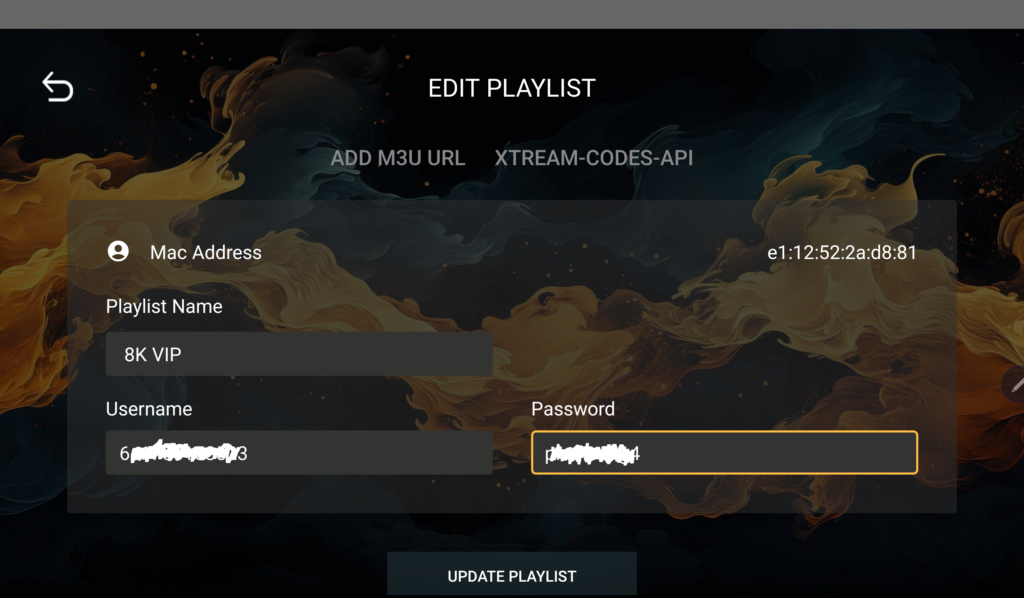
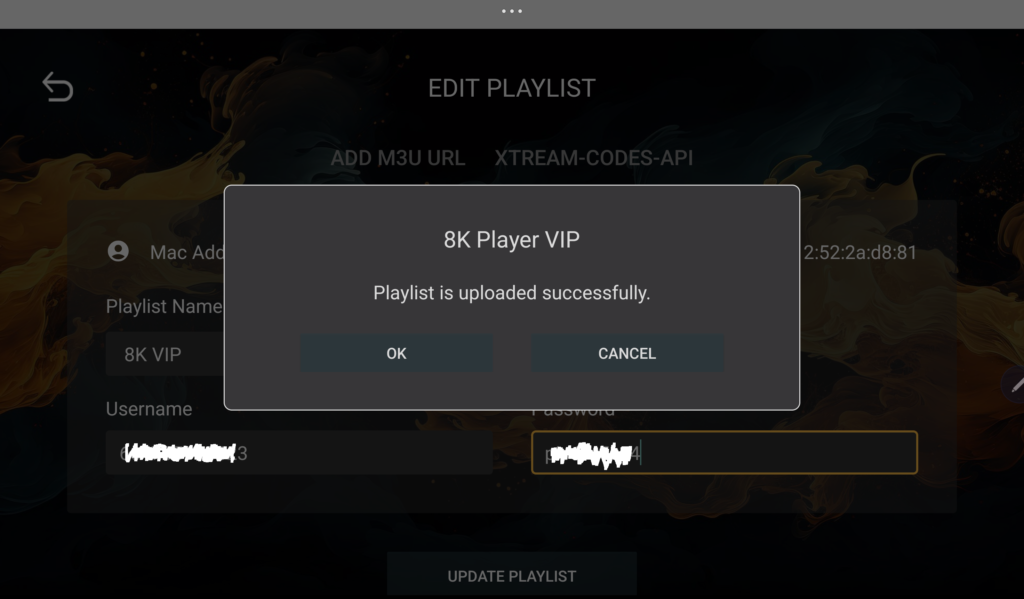
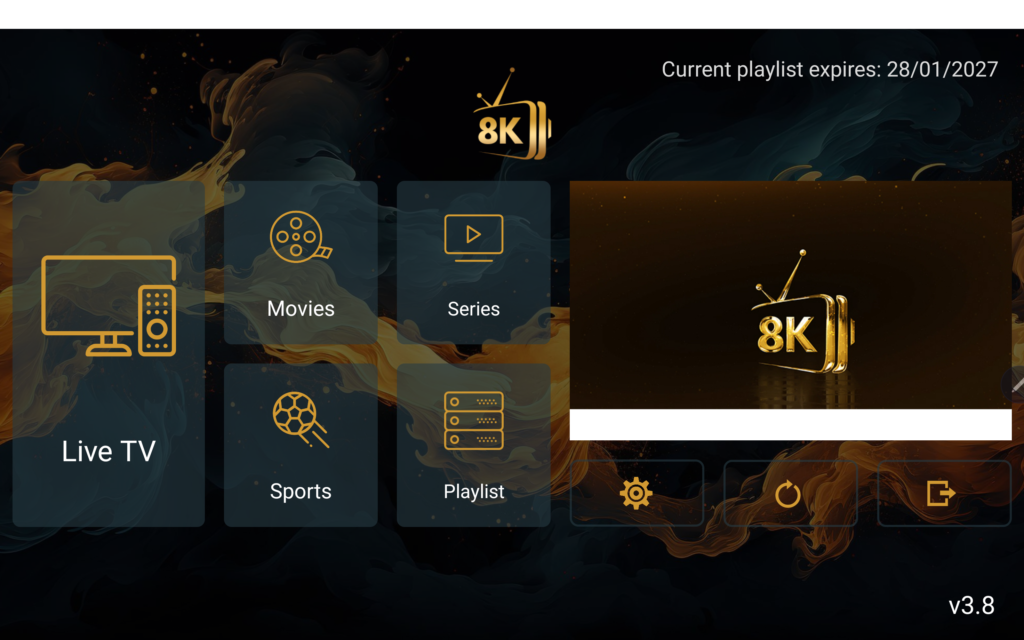
I you have this screen during installation:
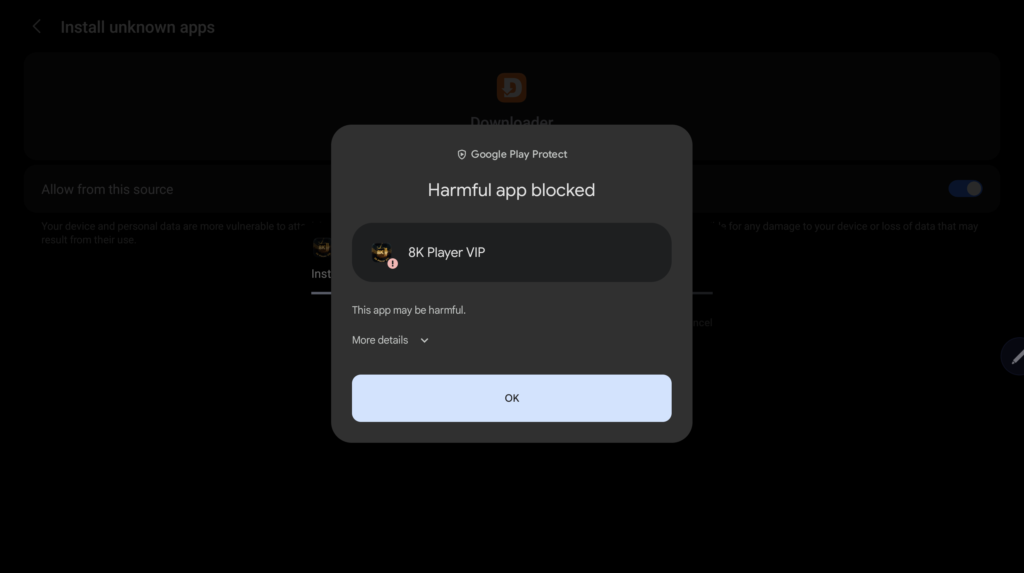
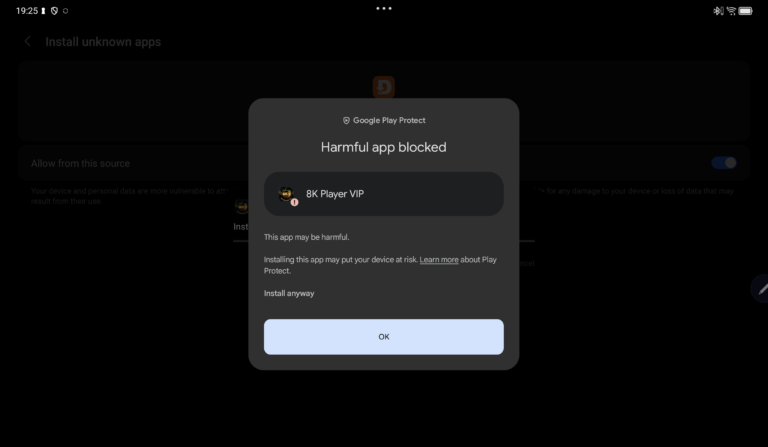
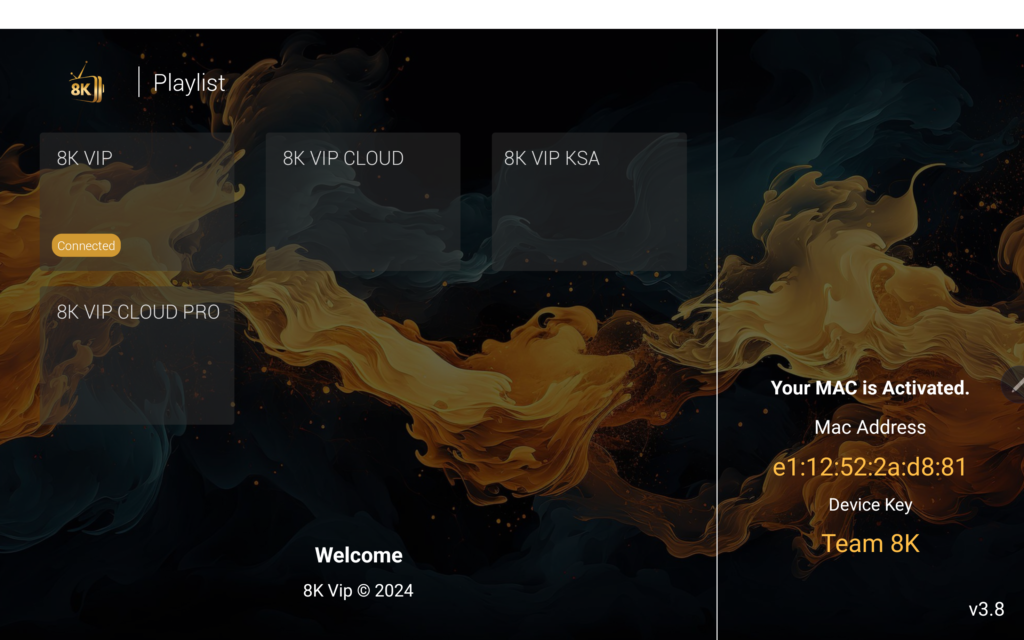
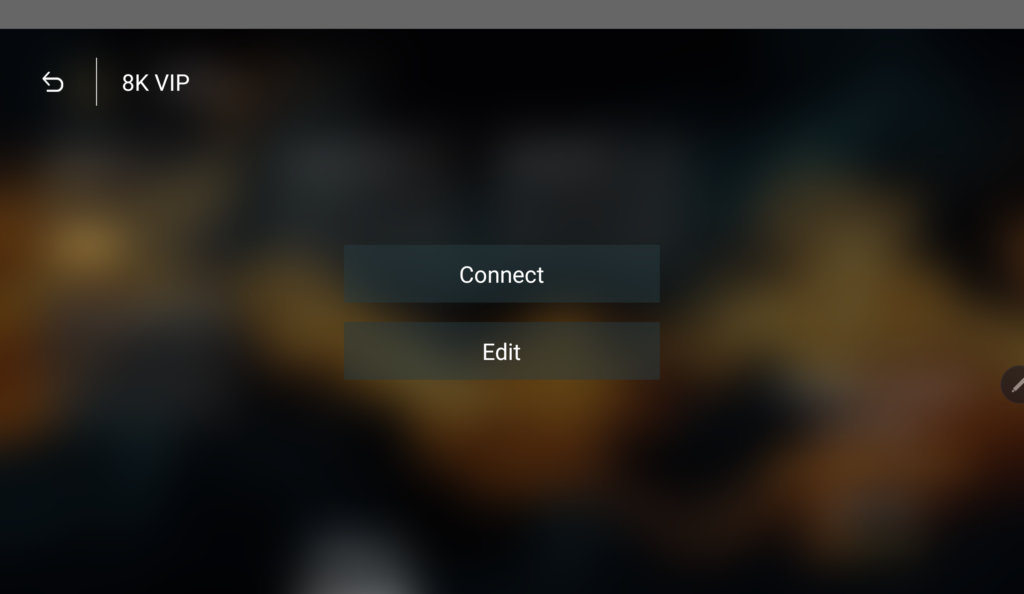
Configure your Subsctiption
Instal IBO Player
How to Install IBO Player on All Devices
This guide explains how to download, install, and set up IBO Player / IBO Player Pro on Smart TVs, streaming sticks, TV boxes, smartphones, tablets, and computers.
IBO Player is an IPTV media player that allows you to watch content using your own M3U playlist or Xtream Codes login.
1. Samsung Smart TV (Tizen OS)
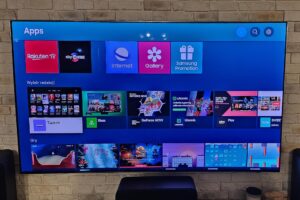
Compatible devices: Samsung Smart TVs running Tizen OS, where IBO Player is available in the Samsung Apps store.
1. Turn on your Samsung Smart TV.
2. Make sure your TV is connected to the internet.
3. Press the Home button on your remote control.
4. Navigate to Apps or Smart Hub.
5. Select the Search icon.
6. Search for IBO Player or IBO Player Pro.
7. Select the app and click Install.
8. Once installed, click Open.
9. Your Device ID (MAC Address) and Device Key should appear on the screen.
The app is now installed and ready for configuration.
2. LG Smart TV (webOS)
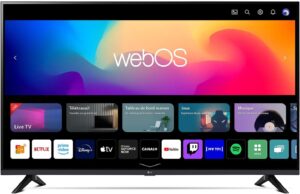
Compatible devices: LG Smart TVs running webOS, where the app is available.
1. Turn on your LG Smart TV.
2. Connect your television to the internet.
3. Press the Home button on your remote.
4. Open LG Content Store or Apps.
5. Select Search.
6. Type IBO Player or IBO Player Pro.
7. Select the application.
8. Click Install.
9. Open the app once installation is complete.
10. Note the Device ID and Device Key displayed on the screen.
3. Android TV / Google TV
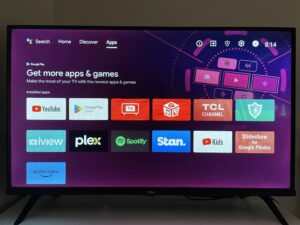
Compatible devices: Sony, TCL, Philips, Hisense Google TV, Xiaomi TV Box, NVIDIA Shield and other Android TV devices.
1. Turn on your Android TV or Google TV device.
2. Open the Google Play Store.
3. Search for IBO Player or IBO Player Pro.
4. Select the compatible application.
5. Click Install.
6. Wait for the installation to finish.
7. Open the application.
8. Note your Device ID and Device Key if displayed.
If the app is not available in the Play Store: You may be able to install a compatible Android APK using Downloader. Only use installation files supplied by the app’s verified developer.
4. Amazon Fire TV Stick / Fire TV Cube
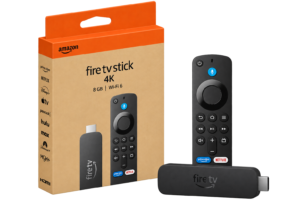
Compatible devices: Fire TV devices running Fire OS that support Android APK installation.
Step 1: Install Downloader
1. Turn on your Fire TV Stick.
2. Navigate to Search.
3. Search for Downloader.
4. Select Downloader by AFTVnews.
5. Click Download or Get.
6. Open Downloader.
Step 2: Allow App Installation
1. Go to Settings.
2. Select My Fire TV.
3. Open Developer Options.
4. Select Install Unknown Apps.
5. Enable installation for Downloader.
If Developer Options are missing, go to My Fire TV → About, select the device name and press the select button seven times, if supported.
Step 3: Install IBO Player
1. Open Downloader.
2. Enter the verified IBO Player installation URL or code provided by the app developer.
3. Press Go.
4. Download the compatible APK file.
5. Select Install.
6. Once installation is complete, select Open.
Important: Fire TV devices using Vega OS, including the Fire TV Stick 4K Select, do not support standard Android APK installation. Downloader installation instructions for Fire OS do not apply to these devices.
5. Xiaomi TV Box / Xiaomi TV Stick
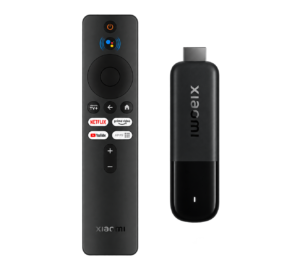
Compatible devices: Xiaomi Mi Box S, Xiaomi TV Box S, Xiaomi TV Stick and Xiaomi TV Stick 4K.
1. Turn on your Xiaomi device.
2. Open the Google Play Store.
3. Search for IBO Player or IBO Player Pro.
4. Select the application.
5. Click Install.
6. Open the app.
7. Note the Device ID and Device Key shown on the screen, if applicable.
If the app is unavailable, check the developer’s website for a compatible APK installation method.
6. Apple TV
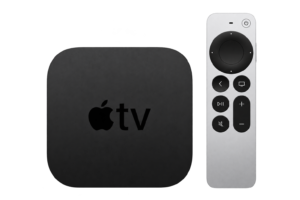
Compatible devices: Apple TV models with an App Store, subject to app availability.
1. Turn on your Apple TV.
2. Open the App Store.
3. Select Search.
4. Search for IBO Player or IBO Player Pro.
5. Select the compatible application if available.
6. Click Get or Install.
7. Open the app.
8. Follow the on-screen setup instructions.
Apple TV cannot install Android APK files.
7. Android Smartphones and Tablets
1. Open the Google Play Store.
2. Search for IBO Player or IBO Player Pro.
3. Select the compatible application.
4. Tap Install.
5. Open the app.
6. Follow the setup instructions and add your playlist.
If the app is unavailable in Google Play, check whether the developer provides a compatible APK.
8. iPhone / iPad
1. Open the Apple App Store.
2. Tap Search.
3. Type IBO Player or IBO Player Pro.
4. Select the available compatible application.
5. Tap Get.
6. Confirm the installation using Face ID, Touch ID or your password.
7. Open the app.
8. Follow the instructions to configure your playlist.
9. Windows PC / Laptop
1. Open your web browser.
2. Visit the verified website of the IBO Player version you want to install.
3. Look for the Windows Download section.
4. Download the Windows version if available.
5. Open the installer.
6. Follow the installation instructions.
7. Launch IBO Player.
8. Add your playlist or account details.
10. Roku TV / Roku Streaming Stick
1. Turn on your Roku device.
2. Press the Home button.
3. Open Streaming Store.
4. Select Search.
5. Search for IBO Player.
6. If a compatible version is available, select it.
7. Choose Add App.
8. Open the application and follow its setup instructions.
App availability depends on the Roku model and region. Android APK files cannot be installed directly on Roku.
11. How to Activate and Set Up IBO Player
After installing IBO Player, you must configure the app before watching content.
Step 1: Open the App
Launch IBO Player on your device. Depending on the version, you may see:
– Device ID or MAC Address
– Device Key
– Activation instructions
Step 2: Activate IBO Player
Some IBO Player versions offer a free trial followed by a paid app activation.
Follow the activation instructions shown within your specific app and use its verified activation website.
Step 3: Add Your IPTV Playlist
Depending on your IBO Player version, you can usually add a playlist using an M3U URL or Xtream Codes login.
For an Xtream Codes login, enter:
– Server URL
– Username
– Password
Alternatively, use the playlist upload portal associated with your particular IBO Player version.
Step 4: Start Watching
After successfully adding your playlist:
1. Restart IBO Player if necessary.
2. Allow the playlist to load.
3. Open Live TV, Movies, or Series, depending on your playlist.
4. Select the content you want to watch.
Note: IBO Player is a media player. Installing or activating the app does not automatically provide TV channels, movies or subscriptions.
You need your own legally obtained playlist or streaming access.
12. Device Compatibility Overview
Device Installation Method
Samsung Smart TV (Tizen) / Samsung Apps
LG Smart TV (webOS) / LG Content Store
Sony Android TV / Google TV / Google Play Store
TCL Android TV / Google TV / Google Play Store
Philips Android TV / Google TV / Google Play Store
Hisense Google TV / Google Play Store
Xiaomi TV Box / Stick / Google Play Store or compatible APK
NVIDIA Shield / Google Play Store
Amazon Fire TV (Fire OS) / App Store or compatible APK
Apple TV / Apple App Store
Android Phone / Tablet / Google Play Store
iPhone / iPad / Apple App Store
Windows PC Compatible / Windows installer
Roku TV / Stick Roku / Streaming Store, if available
You can also find all the files you need at www.ibo.al
13. Troubleshooting
Problem Solution
IBO Player not found
– Check your app store, region and exact app name
Installation blocked
– Check device permissions and app compatibility
App does not open
– Restart the device and check for app updates
Device ID not showing
– Restart the app or check its settings
Playlist not loading
– Check your M3U URL or Xtream Codes details
Channels are buffering
– Check your internet connection
App trial expired
– Follow the verified app activation instructions
Unsupported APK
– Use the version designed for your operating system
Important Information
There are multiple similarly named apps, including IBO Player, IBO Player Pro and IBO Player variants. They may have different publishers, activation websites, licensing systems and device compatibility.
Always confirm the exact app name and publisher before installing or paying for activation. Never assume that an activation purchased for one version will work with another.
For reference, you can consult IBO Player download information and IBO Player Pro installation instructions. These are separate websites; verify which one corresponds to the version you are using.
Final Tip: For the easiest installation, always check your device’s official app store first. Use Downloader only when a compatible Android installation file is necessary and comes from a trusted source.